Clean Your Car Touchscreen Safely: Streak-Free Checklist
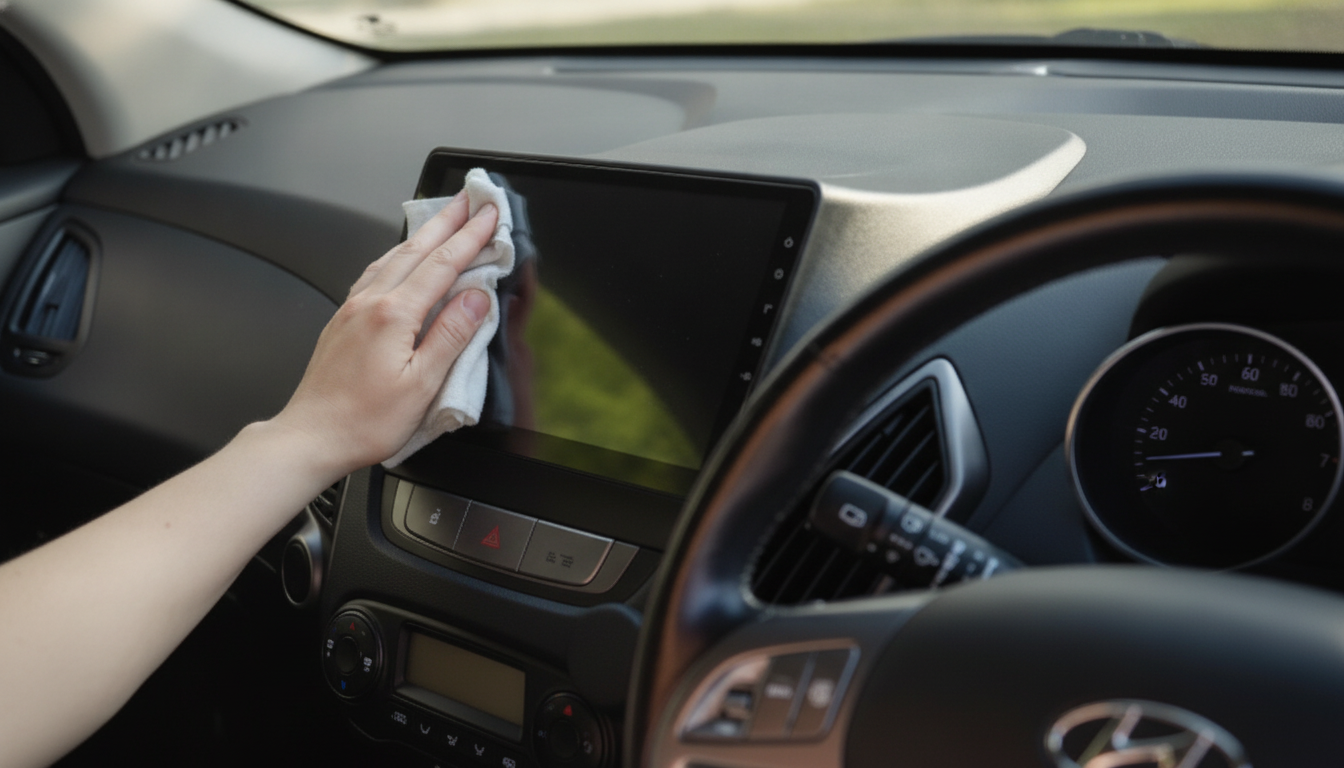
The Safe & Smart Car Touchscreen Cleaning Checklist
Car touchscreens collect fingerprints, skin oils, dust, and hand-sanitizer residue that can reduce clarity and cause sticky spots or haze—especially on anti-glare or oleophobic coatings. This step-by-step checklist focuses on safer materials, the right amount of moisture, and small habits that keep the display responsive and streak-free without risking scratches or chemical damage.
Before You Start: Quick Safety Setup
- Park in a safe, well-lit spot; set the parking brake and turn off the ignition to avoid accidental input or menu changes.
- Let the cabin cool if the screen is hot from sun exposure; cleaning a hot screen increases streaking and may stress coatings.
- Disable touchscreen input if the vehicle offers a “screen cleaning” or “display off” mode; otherwise, turn the display off in settings.
- Remove rings or sharp accessories that could graze the screen while wiping.
What to Use (and What to Avoid)
- Use: clean microfiber cloths (one for damp wiping, one for drying/buffing).
- Use: distilled water in a small spray bottle (optional) to reduce mineral spots from hard water.
- Use (only if needed): a screen-safe cleaner labeled for electronics or displays; follow the vehicle manual when available.
- Avoid: ammonia, bleach, acetone, window cleaner, vinegar-heavy mixtures, and harsh degreasers that can strip coatings or cloud plastics.
- Avoid: paper towels, shop rags, abrasive pads, or “magic eraser” style melamine foam that can microscratch.
- Avoid: spraying liquid directly onto the screen; overspray can seep into edges, buttons, or vents.
Cleaner and Cloth Choices at a Glance
| Item | Best for | Risk level | Notes |
|---|---|---|---|
| Dry microfiber cloth | Daily fingerprints and dust | Low | Use light pressure; fold to a clean side as it loads up. |
| Microfiber + distilled water (cloth lightly damp) | Smudges, light grime | Low | Dampen the cloth, not the display; follow with a dry buff cloth. |
| Electronics/screen cleaner (display-safe) | Sticky spots and heavier oils | Medium | Spot-test first; avoid fragrances and unknown solvents. |
| Paper towel or tissues | None (not recommended) | High | Fibers can scratch and leave lint; may add haze over time. |
| Household glass cleaner | None (not recommended) | High | Often contains ammonia/alcohol blends that can damage coatings. |
| Hand sanitizer or disinfecting wipes | Emergency-only for surrounding areas | High | May degrade coatings; keep away from the screen surface and seams. |
The Step-by-Step Touchscreen Cleaning Checklist
- Step 1 — Dust first: use a dry microfiber cloth to lift dust and grit with gentle, straight strokes (this prevents grinding particles into the surface).
- Step 2 — Prepare a damp cloth: lightly mist distilled water onto the cloth (1–2 sprays) until just barely damp; no dripping.
- Step 3 — Wipe with minimal pressure: wipe from top to bottom in overlapping passes; avoid aggressive circular scrubbing that can create streak patterns.
- Step 4 — Detail the edges carefully: use a folded corner of the microfiber to approach borders; keep moisture away from seams, ports, and physical buttons.
- Step 5 — Spot-treat stubborn marks: for sticky or oily patches, apply a tiny amount of display-safe cleaner to the cloth (not the screen) and dab/wipe the area, then immediately follow with the damp-water cloth to remove residue.
- Step 6 — Dry and buff: use a second dry microfiber cloth to buff lightly until the screen is clear; check at an angle for haze or streaks.
- Step 7 — Restore settings: re-enable the display, verify touch responsiveness, and confirm there are no “ghost touches” from leftover moisture.
- Step 8 — Clean the cloths: wash microfiber separately or in a mesh bag; avoid fabric softener (it reduces absorbency and can leave residue).
Streak-Free Results: Common Mistakes and Fast Fixes
- If streaks appear: the cloth is too wet or oily—switch to a clean dry microfiber and buff; if needed, repeat with a lightly damp cloth using distilled water.
- If a rainbow-like haze shows under sunlight: residue is likely present—use a damp microfiber with distilled water, then dry-buff immediately.
- If touch feels less responsive: ensure the screen is fully dry; clean hands can reduce oil transfer that triggers smears.
- If scratches are visible: stop using rough materials; future prevention focuses on dust-first wiping and dedicated microfiber storage.
- If the screen attracts dust quickly: reduce static by finishing with a clean, dry microfiber and avoiding overly dry cabin air when possible.
How Often to Clean (Without Overdoing It)
Printable Checklist Option
Recommended Digital Checklists (In Stock)
- The Safe & Smart Car Touchscreen Cleaning Checklist – A Step-by-Step Guide to Safely Clean Your Car’s Touchscreen (Digital download)
- Rental Car Insurance Survival Checklist (Handy for trips and shared vehicles)
Trusted Guidance (For Cleaner-Safe Basics)
When in doubt, lean on conservative cleaning practices used for coated screens and high-durability glass. General best practices are also echoed by Apple’s guidance for cleaning devices and major glass manufacturers such as Corning (Gorilla Glass). For general cleaning vs. disinfecting concepts (helpful when deciding whether you even need “disinfectant” on interior surfaces), reference the CDC’s cleaning and disinfecting overview.
FAQ
Can alcohol wipes be used on a car touchscreen?
Best avoided unless the vehicle manufacturer explicitly approves it. Alcohol and additives can degrade anti-glare/oleophobic coatings, so use a product labeled safe for coated displays and apply it to the cloth—not directly to the screen.
What is the safest way to remove sticky residue from a touchscreen?
Start with distilled water on a microfiber cloth using light pressure. If residue remains, spot-treat with a tiny amount of display-safe cleaner on the cloth, then wipe again with a lightly damp water cloth and finish with a dry buff.
Why does the screen look worse after cleaning?
This is usually from too much liquid, a dirty cloth, or leftover cleaner residue. Switch to a clean microfiber, reduce moisture, use distilled water, and buff with a separate dry cloth to restore clarity.
















Leave a comment